
Game guide · PS5 storage
Make room for GTA VI on PS5 without losing your saves
Clear finished games, move installations and choose between USB storage and an M.2 SSD.
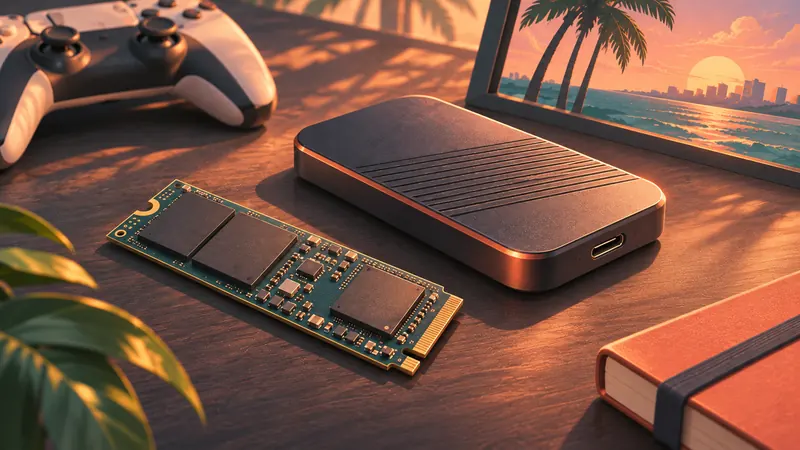
PlayStation’s preload instructions called for at least 212 GB of free space on PS5. Use that as a starting point, then check the space your console requests for the current download and any updates. PlayStation’s preload guidance
Clear installations first
- Open Settings → Storage and select console storage or the M.2 drive you intend to use.
- Open Games and Apps. Pick finished games that you can download again, or move installations you want to keep to compatible extended storage.
- Review the selection before deleting. On a shared console, agree which games can go first.
- Check the free-space total again, then return to the GTA VI download.
Game installations and saved progress are separate. Work in Games and Apps for this clear-out, leaving saved data alone.
USB or M.2?
| Storage | Useful for |
|---|---|
| Internal SSD | Installing and playing PS5 games immediately. |
| Compatible M.2 SSD | Expanding the library of PS5 games you can launch without moving them. |
| USB extended storage | Parking PS5 installations, then copying them back to internal or M.2 storage to play. |
Choose M.2 expansion if you regularly juggle games you still want ready to launch. Use an existing compatible USB drive if you mostly want to avoid downloading archived games again. That is the practical difference between the two purchases. Follow the M.2 compatibility and cooling requirements linked in Sony’s guide when choosing a drive.
Protect progress and finish the download
If you use PlayStation Plus cloud saves, check the relevant game’s sync status. Without a cloud backup, keep the local saved data and remove only the installation. Internet access alone does not create a Plus cloud backup.
Once the download starts, check that it is going to the intended drive. Leave some room for later updates and your other games. If the game is missing from your library, the launch and install briefing explains where to start.
Sources & further reading
- PlayStation Support: manage storage spaceDifference between game installations, saves, USB extended storage and M.2 storage.
- PlayStation Blog: GTA VI preload and PS5 storage3 November 2026 guidance to clear at least 212 GB on PS5 for the preload.