
Game guide · Remote Play
How to play GTA VI away from your TV with Remote Play
Stream GTA VI from your PS5 or Xbox Series X|S to a phone, computer or PlayStation Portal. Set up the connection and test it before you travel.
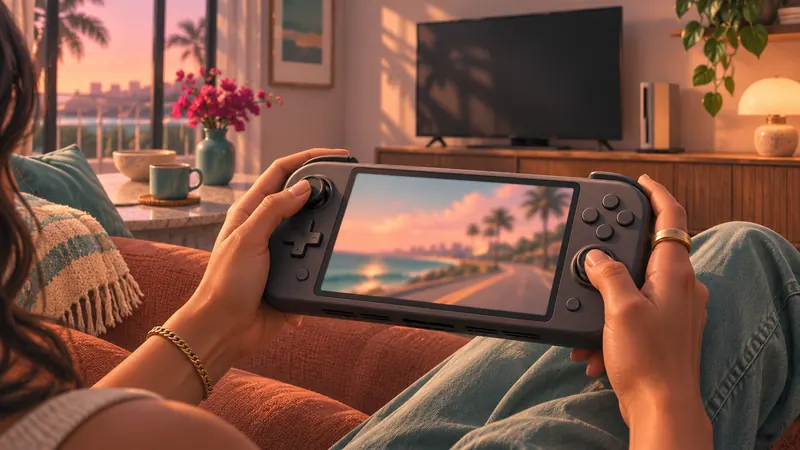
When somebody else wants the TV, your console can keep running GTA VI and send the picture to another screen. Rockstar confirms Remote Play on PS5 and Xbox Series X|S, and the PlayStation Store listing shows Remote Play support. Install the game on your console, then connect from a supported device. Rockstar’s Remote Play support note
Set up PS5 Remote Play
- On the PS5, open Settings → System → Remote Play and turn on Enable Remote Play for the profile you’ll use.
- To wake the console remotely, open Settings → System → Power Saving → Features Available in Rest Mode. Turn on Stay Connected to the Internet and Enable Turning on PS5 from Network.
- On PlayStation Portal, sign in with the same account and select your PS5 from the Remote Play screen. On a supported phone, tablet, PC or Mac, use the PS Remote Play app and select the PS5. The mobile app has touch controls and supports compatible controllers.
Leave the console on or in rest mode when you want to connect. For a first try, a phone and a controller you already own can tell you whether streaming suits where you play before you consider a Portal. PlayStation’s mobile instructions · PlayStation’s Portal instructions
Connect to your Xbox in a browser
On the Series X or Series S where GTA VI is installed, go to Settings → Devices & connections → Remote features and turn on Enable remote features. Set the console’s power option to Sleep if you want to wake it remotely. Logitech’s Xbox setup instructions
Start from the official Xbox Remote Play page in a supported browser and follow its link to launch Remote Play. Sign in with the Microsoft account you use on the console, select your Xbox and connect a compatible controller. On phones, Microsoft directs players to the browser for Remote Play.
If you have an Xbox One, use the Xbox Cloud Gaming route. It streams from Xbox’s servers and has its own purchase and access requirements. PlayStation Portal also has a Cloud Streaming tab for eligible games with PlayStation Plus Premium. As of 19 November, we couldn’t verify GTA VI in Sony’s cloud catalog. Use Remote Play from your PS5 for the supported Portal route. PlayStation’s cloud eligibility guidance
Try it before you need it
Connect at home with a game you already own. Then put the console in its remote-ready power mode and try reconnecting from the room or device you’ll actually use. If the picture breaks up or inputs feel late, wire the console to the router if you can, then try the same spot again. Sony recommends at least 15 Mbps for a better Portal Remote Play experience, and public Wi-Fi quality can vary even when a speed test looks fine.
Before leaving home, check that the GTA VI installation is complete and the console can wake without anyone pressing its power button. If the install is still waiting for space, follow the guide for PS5 storage or Xbox storage.
Sources & further reading
- Rockstar Support — GTA VI platforms, editions and versionsPhysical Standard Edition, the digital Ultimate Edition Upgrade, code redemption regions and Remote Play support.
- PlayStation Store US — GTA VI Standard EditionLaunch-day purchase listing and Remote Play support for PS5.
- PlayStation Support — Remote Play on mobilePS5 account and rest mode setup, supported mobile devices, input options and connection guidance.
- PlayStation Support — Remote Play on PS PortalConsole pairing, network setup and starting a Remote Play session from Portal.
- PlayStation Support — Cloud Streaming on PS PortalPlayStation Plus Premium requirements and how to check whether a title is eligible in your region.
- Xbox — Remote PlayRequirements and browser access for streaming installed games from your own Xbox.
- Xbox Wire — April 2025 Xbox updateBrowser-based Xbox Remote Play and the Free up space tool in My games & apps.
- Xbox Wire — GTA VI on Xbox Cloud Gaming10 November 2026 announcement covering cloud launch time, eligible Xbox consoles, Series S graphics settings and separate game purchase.